How do I start and host an online bingo game?
Open a saved card, select Play online, and share the game link with your players. Review the game settings and ask one player to test the link before you start calling.
Before you invite players
You must sign in to host an online game. Make sure the correct card is open and check the player limit on the host account.
Every plan can host up to 50 players by default. Player-limit upgrades are available for larger games, up to 2,000 players.
Before the session:
- Open the card you want to use.
- Check the card title and items.
- Test sound on the device and speakers you will use.
- Decide which winning pattern and call mode the game needs.
- Keep the game link available in case someone needs to reconnect.
Share the game
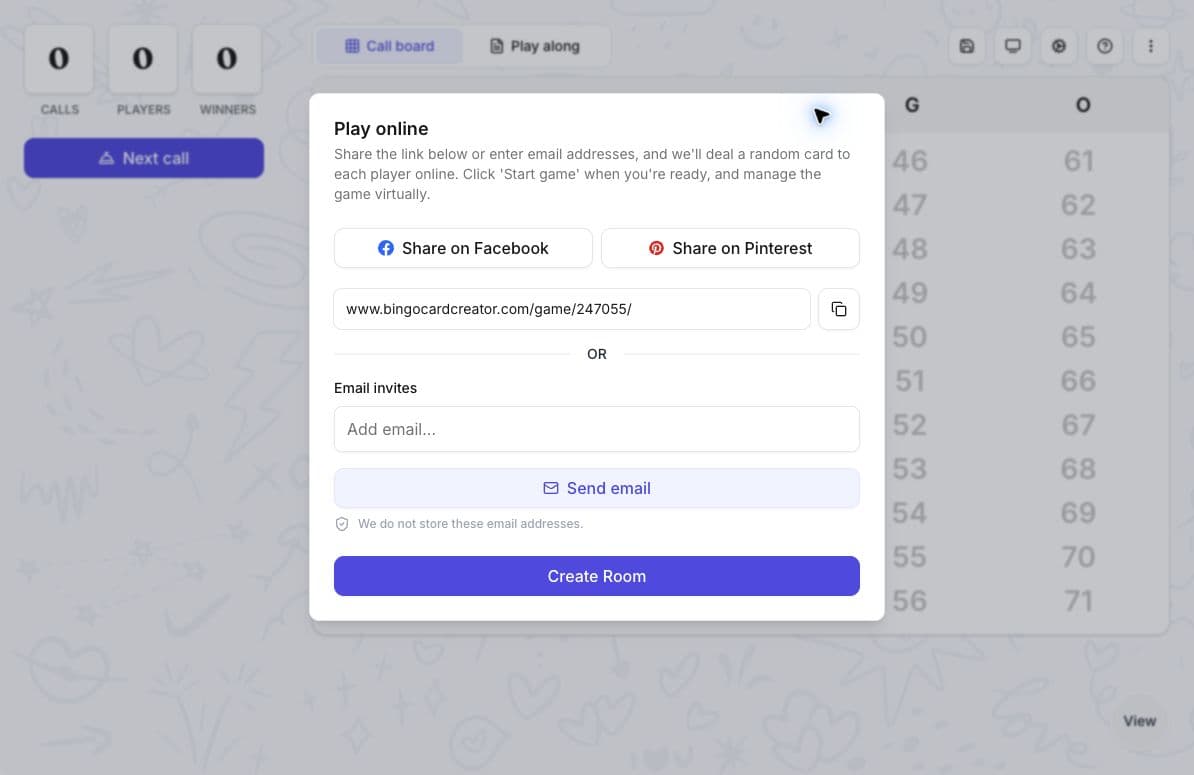
- Select Play online from the card editor or saved-card actions.
- Copy the displayed game link, or add email invitations.
- Send the link to one test player first.
- Select Join game to open the host controls.
- Confirm that the test player can join before inviting the full group.
The sharing screen also includes social-sharing options. Keep the copied game link so you can send it again if a player needs to reconnect.
Choose the game settings
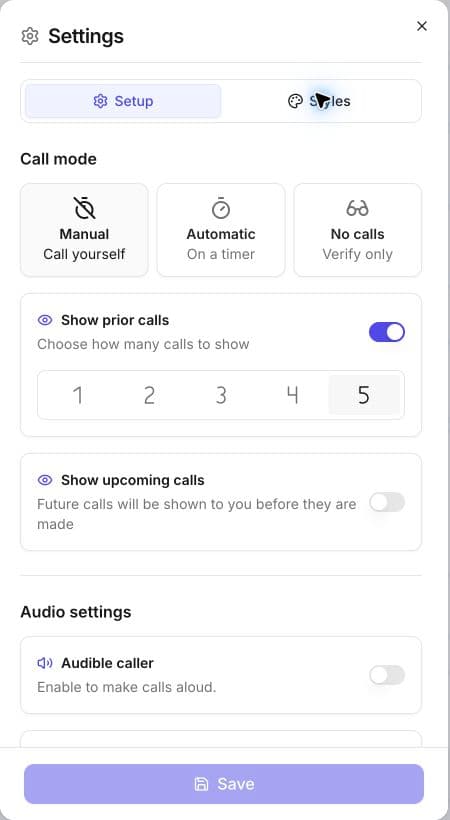
Open the game settings before starting the first call.
- Manual lets the host make each call.
- Automatic makes calls at the selected interval.
- No calls lets players mark their cards without any calls, such as for a scavenger hunt.
You can also choose how many previous and upcoming calls to show, configure caller audio and chimes, select a winning pattern, and turn Auto-win, Auto-daub, or Auto-verify on or off.
- Auto-daub marks matching squares on each player's card as calls are made.
- Auto-verify checks a submitted bingo without opening the manual card-review dialog.
- Auto-win submits a completed pattern without the player selecting Bingo. The player's Bingo button is unavailable.
Review these settings with the test player. Players should know the winning pattern and whether the room will mark, verify, or submit completed cards automatically.
Start and run the game
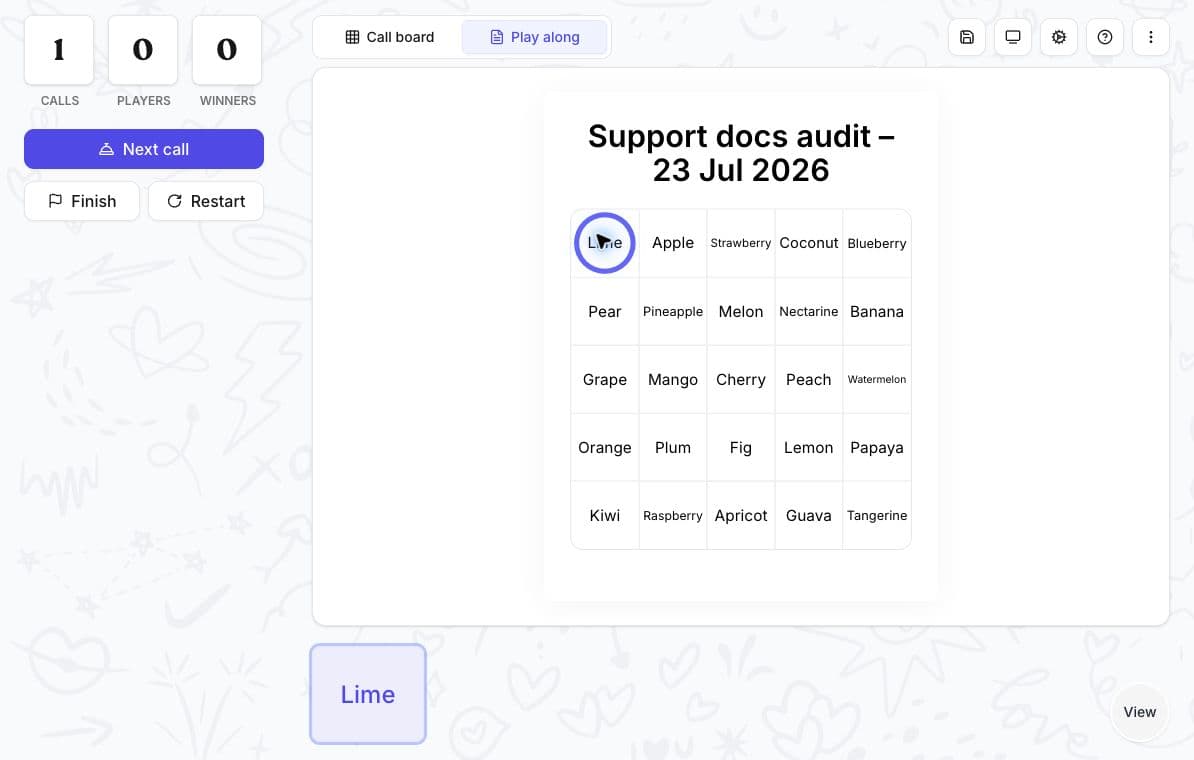
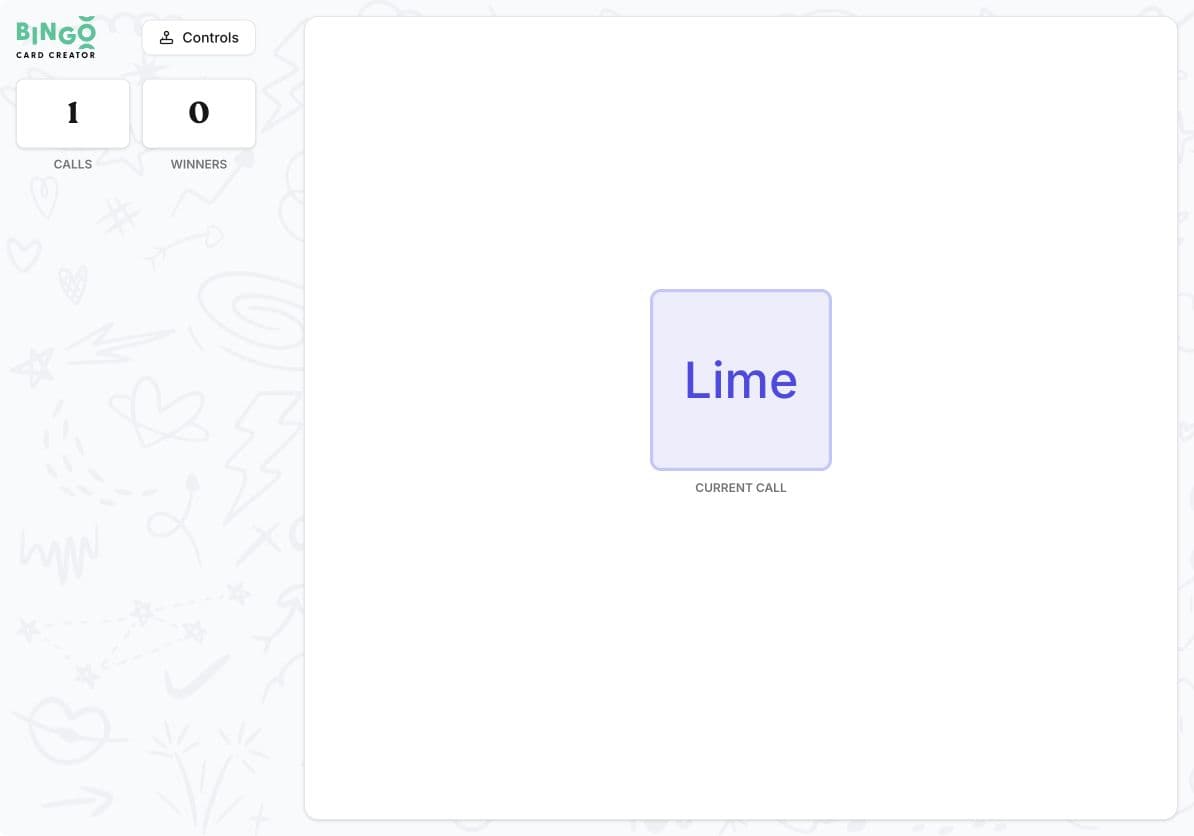
- Wait until the expected players have joined.
- Select Start game. In Manual mode, this makes the first call.
- Use the call board to make or review calls.
- Open Play along if you want a markable host card.
- Open the presentation view when an audience needs a separate display.
Keep the visible call history available even when audio is on. A player who misses the sound can still check the current and previous calls.
Review a player's bingo
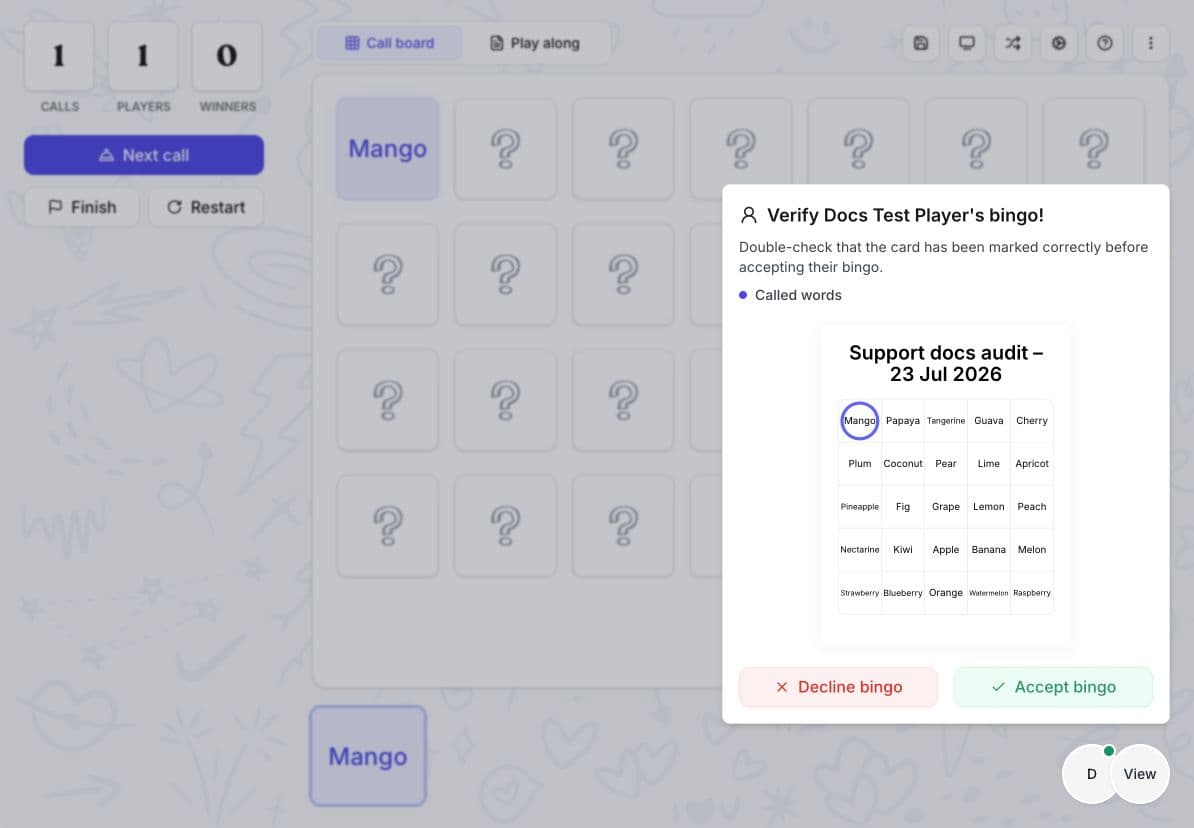
When a player selects Bingo, the host sees the player's marked card.
- Check the marked squares against the required pattern.
- Check that the marked items have been called.
- Select Decline bingo if the claim is not complete.
- Select Accept bingo when the claim is correct.
After a rejection, the player is told to check their card and can continue playing.
After you accept a bingo:
- Select Continue to record the winner and keep the same round open for more winners.
- Select Declare winners to end the round. Players must select Join the game when you start another round.
Manage players
Select View beside the player count to open Players. Expand a player to view their card or remove them from the room.
- Remove lets the player select Rejoin and send a new request.
- Block prevents the player from rejoining that room.
Open Rejoin requests when the host controls show a request. Select Accept to return the player to the game or Reject to refuse the request.
Finish the session
Select Finish when the round is over. The room remains available so you can save the game or start another round.
Use Restart only when you want to discard the current round and start again. The confirmation warns that the progress cannot be restored. Restart clears the calls, marks, and winners, then gives connected players new cards.
Do not restart or replace the room while players are still using it unless you intend to discard the current round. If someone loses their connection, keep the original game open and send the same link again before creating another room.
Save and resume the game
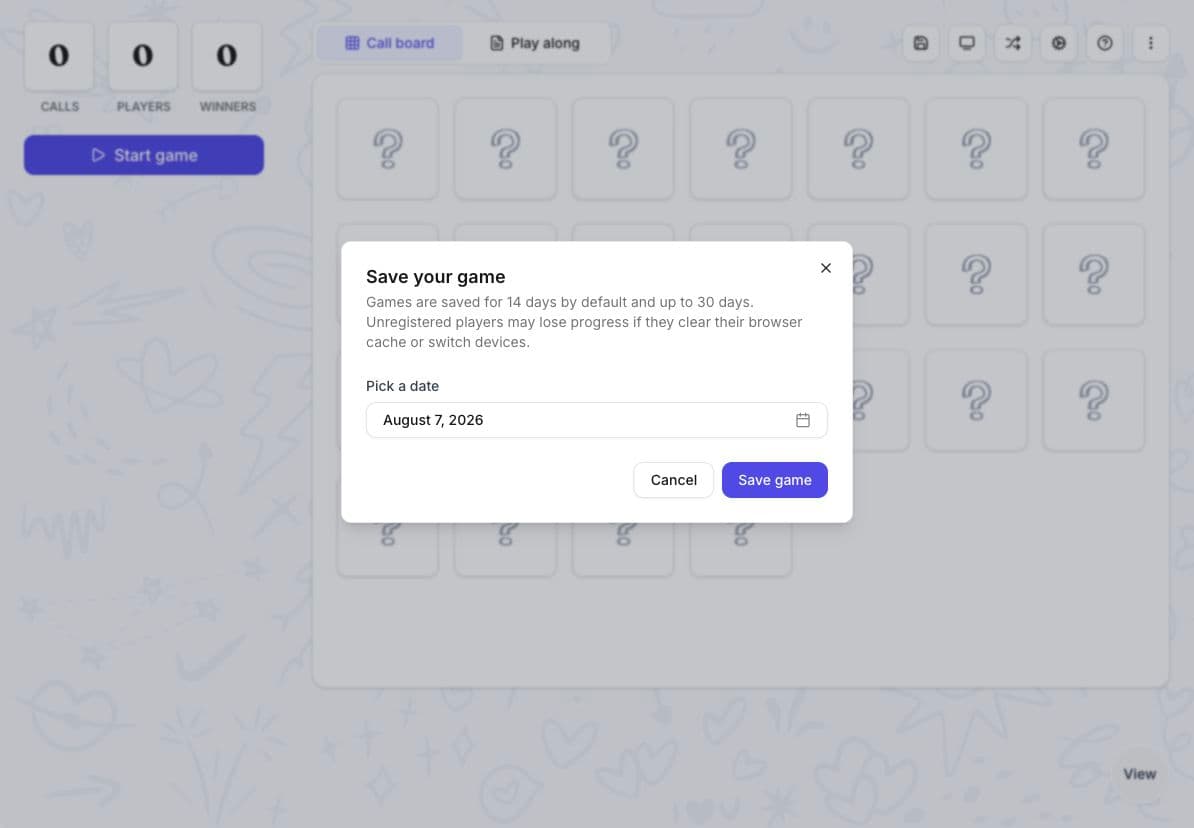
- Select the save icon in the host controls.
- Choose the date until which the game should remain available.
- Select Save game.
Games are saved for 14 days by default. You can choose a date up to 30 days away. The game is deleted after the selected date.
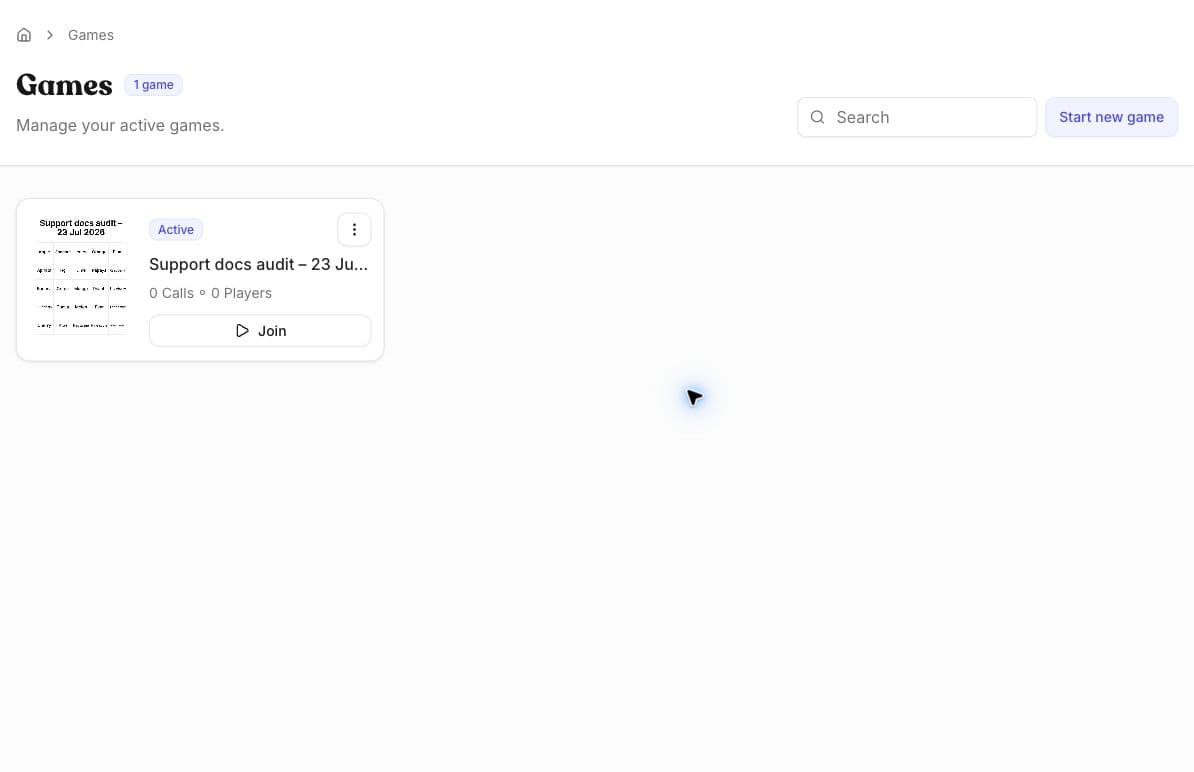
To return later, open Games, find the game under Active, and select Join. Players who joined without signing in may lose their progress if they clear their browser data or change devices.
To remove a saved game early, open its action menu and select Delete. Deleting a saved game cannot be undone.
Related guides
Was this article helpful?
Still have questions?
Haven't you found what you're looking for in our support area? Contact us by selecting the button below.
Contact us